<!DOCTYPE suite SYSTEM "http://beust.com/testng/testng-1.0.dtd">
<suite name="regression test">
<parameter name="baseurl" value="www.google.com"/>
<parameter name="hostname" value="localhost" />
<parameter name="browser" value="*firefox" />
<test name="regression test">
<classes>
<class name="tests.test1"> </class>
</classes>
</test>
</suite>
Showing posts with label Other. Show all posts
Showing posts with label Other. Show all posts
Sunday, November 14, 2010

test1
package tests;
import com.thoughtworks.selenium.*;
import org.testng.annotations.*;
import org.testng.internal.thread.TestNGThread;
import framework.BaseTest;
public class test1 extends BaseTest {
@Test public void test() throws Exception {
selenium.open("https://members.kaiserpermanente.org/kpweb/signon.do");
selenium.windowMaximize();
selenium.windowFocus();
TestNGThread.sleep(3000);
// selenium.waitForPageToLoad("30000");
assertTrue(selenium.isElementPresent("//div[@id='brand']/img"));
assertTrue(selenium.isElementPresent("userid"));
assertTrue(selenium.isElementPresent("password"));
selenium.type("password", "jhkjh");
}
}
import com.thoughtworks.selenium.*;
import org.testng.annotations.*;
import org.testng.internal.thread.TestNGThread;
import framework.BaseTest;
public class test1 extends BaseTest {
@Test public void test() throws Exception {
selenium.open("https://members.kaiserpermanente.org/kpweb/signon.do");
selenium.windowMaximize();
selenium.windowFocus();
TestNGThread.sleep(3000);
// selenium.waitForPageToLoad("30000");
assertTrue(selenium.isElementPresent("//div[@id='brand']/img"));
assertTrue(selenium.isElementPresent("userid"));
assertTrue(selenium.isElementPresent("password"));
selenium.type("password", "jhkjh");
}
}
BaseTest.java
package framework;
import java.io.File;
import com.thoughtworks.selenium.*;
import org.apache.log4j.Logger;
import org.openqa.selenium.server.RemoteControlConfiguration;
import org.openqa.selenium.server.SeleniumServer;
import org.testng.annotations.*;
import org.testng.internal.thread.TestNGThread;
public class BaseTest extends SeleneseTestCase {
private SeleniumServer server;
public static Selenium selenium;
public static Logger logger = Logger.getLogger(BaseTest.class.getName());
@Parameters( { "browser", "hostname", "baseurl","firefox-profile-location" })
@BeforeClass(alwaysRun = true)
public void testUntitled(String browser,
String hostname,
String baseurl,
@Optional("") String firefoxProfileLocation) throws Exception {
try {
if("localhost".equals(hostname)) {
if(!"".equals(firefoxProfileLocation)) {
RemoteControlConfiguration config = new RemoteControlConfiguration();
config.setFirefoxProfileTemplate(new File(firefoxProfileLocation));
server = new SeleniumServer(false, config);
}
else {
server = new SeleniumServer();
}
server.start();
}
} catch (Exception t) {
logger.error("Unable to start Selenium server", t);
fail("Unable to start Selenium server: " + t.getMessage());
}
int port=4444;
selenium = new DefaultSelenium(hostname, port, browser, baseurl);
selenium.start();
}
@AfterClass(alwaysRun = true)
public void closeBrowserAfterEachClass() {
if (selenium != null) {
selenium.close();
selenium.stop();
}
}
}
import java.io.File;
import com.thoughtworks.selenium.*;
import org.apache.log4j.Logger;
import org.openqa.selenium.server.RemoteControlConfiguration;
import org.openqa.selenium.server.SeleniumServer;
import org.testng.annotations.*;
import org.testng.internal.thread.TestNGThread;
public class BaseTest extends SeleneseTestCase {
private SeleniumServer server;
public static Selenium selenium;
public static Logger logger = Logger.getLogger(BaseTest.class.getName());
@Parameters( { "browser", "hostname", "baseurl","firefox-profile-location" })
@BeforeClass(alwaysRun = true)
public void testUntitled(String browser,
String hostname,
String baseurl,
@Optional("") String firefoxProfileLocation) throws Exception {
try {
if("localhost".equals(hostname)) {
if(!"".equals(firefoxProfileLocation)) {
RemoteControlConfiguration config = new RemoteControlConfiguration();
config.setFirefoxProfileTemplate(new File(firefoxProfileLocation));
server = new SeleniumServer(false, config);
}
else {
server = new SeleniumServer();
}
server.start();
}
} catch (Exception t) {
logger.error("Unable to start Selenium server", t);
fail("Unable to start Selenium server: " + t.getMessage());
}
int port=4444;
selenium = new DefaultSelenium(hostname, port, browser, baseurl);
selenium.start();
}
@AfterClass(alwaysRun = true)
public void closeBrowserAfterEachClass() {
if (selenium != null) {
selenium.close();
selenium.stop();
}
}
}
Install TestNG Eclipse plug-in
open Eclipse.exe
Navigate to Help--> install new software
 add testNG plugin url http://beust.com/eclipse.
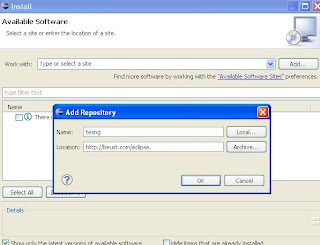
select testNG and click "next" and complete installing.

verify whether installation or not by navigating to windows--> preferences.
testNG should be displayed in the left side.

Navigate to Help--> install new software


select testNG and click "next" and complete installing.

verify whether installation or not by navigating to windows--> preferences.
testNG should be displayed in the left side.
Install Eclipse
Download Eclipse classic the file from http://www.eclipse.org/downloads/
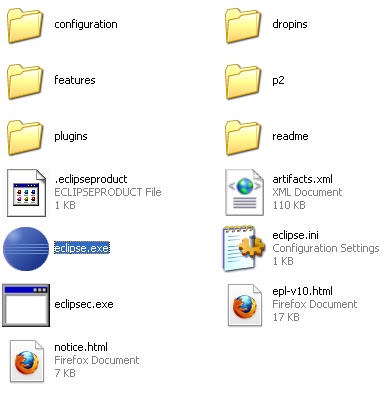
unzip the file and open eclipse.exe.

unzip the file and open eclipse.exe.
How to install Maven on windows
Go to Start-->Run and type "cmd"
Command prompt window will open, then type "mvn"
If you see " mvn is not recognized as an internal or external command" message, then you need to install Maven.
Download ant binary file from http://maven.apache.org/download.html
 unzip the downloaded file and copy into the C:\Program Files..
Copy the bin directory path. We need to add Maven bin directory path to system environment variables path.
right click on My computer and select properties-->Advanced-->environment variables-->System variable--> select path and click on edit.
Add Maven bin path to as shown in below image. Click "Ok".
Now, Restart the machine and open command prompt and enter "mvn -version".
You should see similar message as below.
Command prompt window will open, then type "mvn"
If you see " mvn is not recognized as an internal or external command" message, then you need to install Maven.
Download ant binary file from http://maven.apache.org/download.html

Copy the bin directory path.

right click on My computer and select properties-->Advanced-->environment variables-->System variable--> select path and click on edit.
Add Maven bin path to as shown in below image.

Now, Restart the machine and open command prompt and enter "mvn -version".
You should see similar message as below.

How to install ANT on windows
Go to Start-->Run and type "cmd"
Command prompt window will open, then type "ant"
If you see " ant is not recognized as an internal or external command" message, then you need to install ant.
Download ant binary file from http://ant.apache.org/bindownload.cgi.
 unzip the downloaded file and copy into the C:\Program Files\ANT..
Copy the bin directory path.
 We need to add ant bin directory path to system environment variables path.
right click on My computer and select properties-->Advanced-->environment variables-->System variable--> select path and click on edit.
Add ANT bin path to as shown in below image.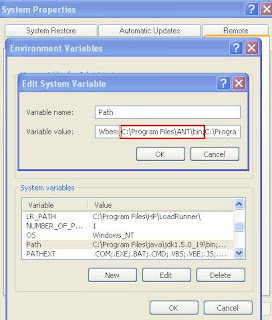 Click "Ok".
Now, Restart the machine and open command prompt and enter "ant -version".
You should see similar message as below.

Command prompt window will open, then type "ant"
If you see " ant is not recognized as an internal or external command" message, then you need to install ant.
Download ant binary file from http://ant.apache.org/bindownload.cgi.

Copy the bin directory path.

right click on My computer and select properties-->Advanced-->environment variables-->System variable--> select path and click on edit.
Add ANT bin path to as shown in below image.

Now, Restart the machine and open command prompt and enter "ant -version".
You should see similar message as below.

How to install jdk on windows
Go to Start-->Run and type "cmd"
Command prompt window will open, then type "java -verion"
If you see " Java is not recognized as an internal or external command" message, then you need to install JDK.
Download the file from http://www.oracle.com/technetwork/java/index.html
Click on "Java SE"
 Then, click on "Download JDK"
 Enter Sun online account info in the next screen, create one account if you don't have a sun online account.
Once download is complete, unzip the file. and copy the file in C:\Program Files\java.Now, copy the bin directory path.
 We need to add bin directory path to system environment variables path.
right click on My computer and select properties-->Advanced-->environment variables-->System variable--> select path and click on edit.
Add jdk bin path to as shown in below image.
 Click "Ok".
Now, Restart the machine and open command prompt and enter "java -version".
Command prompt window will open, then type "java -verion"
If you see " Java is not recognized as an internal or external command" message, then you need to install JDK.
Download the file from http://www.oracle.com/technetwork/java/index.html
Click on "Java SE"

Once download is complete, unzip the file. and copy the file in C:\Program Files\java.Now, copy the bin directory path.

right click on My computer and select properties-->Advanced-->environment variables-->System variable--> select path and click on edit.
Add jdk bin path to as shown in below image.

Now, Restart the machine and open command prompt and enter "java -version".
You should see similar message as below.

Hi
Hi All,
I would like to document all the testing related information, so that it will be helpful to others.
Thanks
Pramod
I would like to document all the testing related information, so that it will be helpful to others.
Thanks
Pramod
Subscribe to:
Posts (Atom)